GA4's enhanced measurement stopped tracking tel: and mailto: link clicks in November 2024. And if you've been relying on Google Tag Manager to pick up the slack, you've probably noticed it doesn't work reliably on Shopify either — the custom pixel sandbox gets in the way. On top of that, most Shopify stores have contact forms, enquiry forms, and newsletter signups that GA4 never tracks at all out of the box.
This article is part of my small business website guide.
This guide covers the complete fix: phone clicks, email clicks, contact form submissions, newsletter signups, and third-party lead capture forms — all tracked directly in GA4 via a single script in your theme, with no GTM required.
I'm assuming GA4 is already installed on your store and linked up. If it's not, sort that first, then come back.
TL;DR — Just Give Me the Script
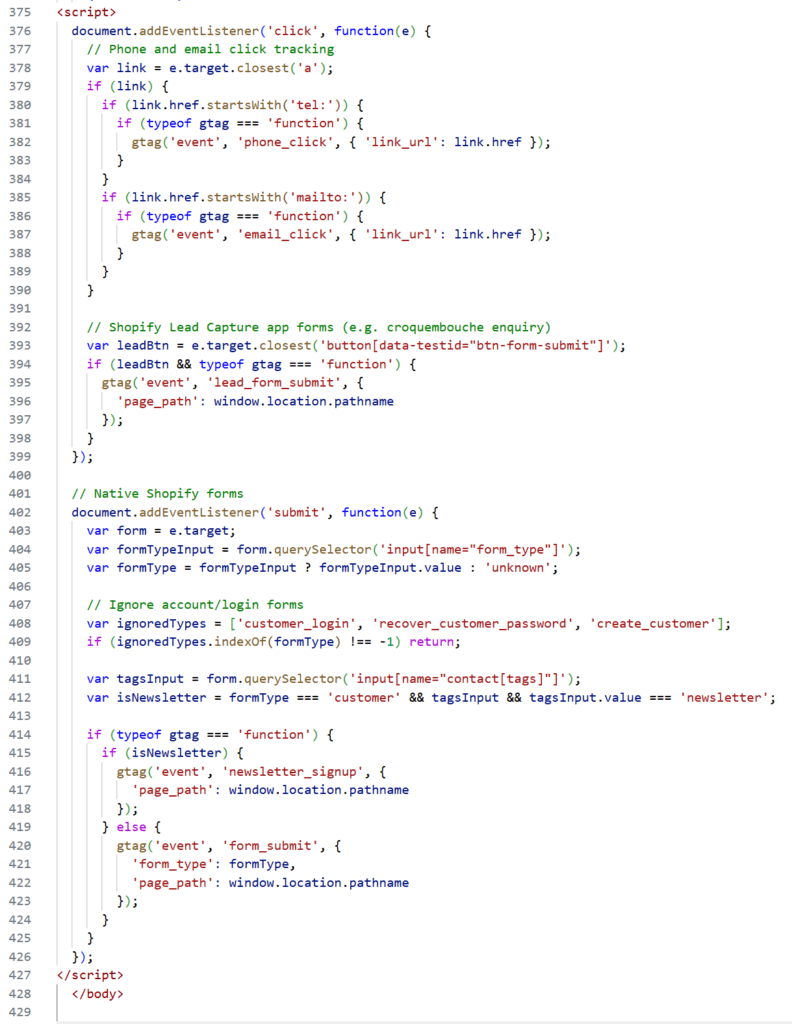
If you know what you're doing and just want the code, paste this directly above the closing </body> tag in your theme.liquid file, then save.
<script>
  document.addEventListener('click', function(e) {
    // Phone and email click tracking
    var link = e.target.closest('a');
    if (link) {
      if (link.href.startsWith('tel:')) {
        if (typeof gtag === 'function') {
          gtag('event', 'phone_click', { 'link_url': link.href });
        }
      }
      if (link.href.startsWith('mailto:')) {
        if (typeof gtag === 'function') {
          gtag('event', 'email_click', { 'link_url': link.href });
        }
      }
    }

    // Shopify Lead Capture app forms (e.g. enquiry forms built with the Lead Capture app)
    var leadBtn = e.target.closest('button[data-testid="btn-form-submit"]');
    if (leadBtn && typeof gtag === 'function') {
      gtag('event', 'lead_form_submit', {
        'page_path': window.location.pathname
      });
    }
  });

  // Native Shopify forms
  document.addEventListener('submit', function(e) {
    var form = e.target;
    var formTypeInput = form.querySelector('input[name="form_type"]');
    var formType = formTypeInput ? formTypeInput.value : 'unknown';

    // Ignore account and login forms
    var ignoredTypes = ['customer_login', 'recover_customer_password', 'create_customer'];
    if (ignoredTypes.indexOf(formType) !== -1) return;

    var tagsInput = form.querySelector('input[name="contact[tags]"]');
    var isNewsletter = formType === 'customer' && tagsInput && tagsInput.value === 'newsletter';

    if (typeof gtag === 'function') {
      if (isNewsletter) {
        gtag('event', 'newsletter_signup', {
          'page_path': window.location.pathname
        });
      } else {
        gtag('event', 'form_submit', {
          'form_type': formType,
          'page_path': window.location.pathname
        });
      }
    }
  });
</script>
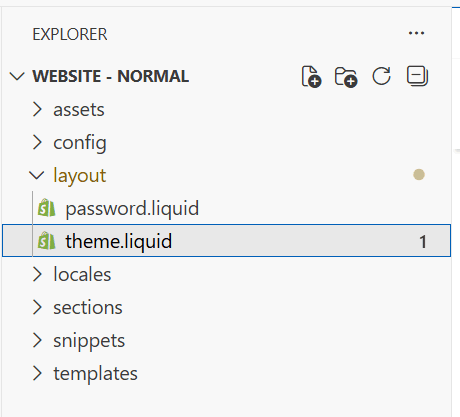
Where to put it: Online Store > Themes > Edit code > Layout > theme.liquid, just above </body>.
That's it. The rest of this post explains why it works, what each part does, and how to verify it's firing correctly.
Why GTM Doesn't Work for This on Shopify
Before getting into the implementation, it's worth understanding why GTM is the wrong tool for this job on Shopify.
Shopify runs its checkout and certain page interactions inside a sandboxed environment called the custom pixel sandbox. GTM sits outside that sandbox, which means it can't reliably intercept clicks on phone links, email links, or form submissions depending on where they occur on the page or how the theme is built.
The result is patchy tracking — events fire sometimes, not others, and you end up with data you can't trust.
The approach in this guide bypasses that entirely. The script goes directly into theme.liquid, which loads on every non-checkout page. It calls gtag natively, the same way your GA4 snippet does, and sends events straight to your GA4 property. No middleware, no sandbox restrictions.
What the Script Tracks
The script handles four distinct things:
Phone clicks. Any click on a tel: link fires a phone_click event, with the phone number URL included as a parameter.
Email clicks. Any click on a mailto: link fires an email_click event, with the email address URL included as a parameter.
Contact and enquiry forms. Native Shopify forms (built using Shopify's standard page.contact template or the contact Liquid form tag) fire a form_submit event. The form_type parameter tells you which form it was.
Newsletter signups. The footer email signup fires a newsletter_signup event, tracked separately from other forms so you can report on it cleanly.
It also handles a fifth case: if your store uses the Shopify Lead Capture app to power enquiry forms (recognisable by their custom field builder and multi-step layout), those fire a lead_form_submit event. These forms use AJAX rather than a standard form submission, so they need a different approach — covered below.
Step 1: Back Up Your Theme
Before touching any code, duplicate your active theme. In Shopify admin go to Online Store > Themes, click the three dots next to your live theme, and select Duplicate. This takes about 30 seconds and means you can restore everything instantly if something goes wrong.
Step 2: Open theme.liquid
Navigate to Online Store > Themes > Edit code. In the left-hand file panel, open the Layout folder and click theme.liquid. This is the master template that wraps every page on your store — anything added here runs site-wide.
Scroll to the very bottom of the file and find the closing </body> tag.
Step 3: Add the Script
Paste the full script from the TL;DR section directly above the closing </body> tag. Click Save.
If you already have the original phone and email click tracking script in place (the one without the form tracking), replace it entirely with the new version. Don't add them side by side — you'll end up with duplicate events.
How Each Part of the Script Works
Phone and email click tracking
document.addEventListener('click', function(e) {
  var link = e.target.closest('a');
  if (link) {
    if (link.href.startsWith('tel:')) {
      if (typeof gtag === 'function') {
        gtag('event', 'phone_click', { 'link_url': link.href });
      }
    }
    if (link.href.startsWith('mailto:')) {
      if (typeof gtag === 'function') {
        gtag('event', 'email_click', { 'link_url': link.href });
      }
    }
  }
});
This uses event delegation — a single listener on the whole document catches every click and checks whether it landed on a phone or email link. The typeof gtag === 'function' check is a safety guard: if gtag hasn't loaded yet (due to an ad blocker, slow connection, or script load order), calling it would throw a JavaScript error and potentially break other scripts on the page. The guard prevents that.
Native Shopify form tracking
document.addEventListener('submit', function(e) {
  var form = e.target;
  var formTypeInput = form.querySelector('input[name="form_type"]');
  var formType = formTypeInput ? formTypeInput.value : 'unknown';

  var ignoredTypes = ['customer_login', 'recover_customer_password', 'create_customer'];
  if (ignoredTypes.indexOf(formType) !== -1) return;

  var tagsInput = form.querySelector('input[name="contact[tags]"]');
  var isNewsletter = formType === 'customer' && tagsInput && tagsInput.value === 'newsletter';

  if (typeof gtag === 'function') {
    if (isNewsletter) {
      gtag('event', 'newsletter_signup', { 'page_path': window.location.pathname });
    } else {
      gtag('event', 'form_submit', { 'form_type': formType, 'page_path': window.location.pathname });
    }
  }
});
Every native Shopify form includes a hidden input field called form_type. The script reads that value to identify what kind of form was submitted. The blocklist (ignoredTypes) filters out account login, registration, and password reset forms — you don't want those appearing as conversions in GA4.
The newsletter check looks for a second hidden input: contact[tags] with the value newsletter. This is how Shopify distinguishes a newsletter signup from a customer account form, since both use the same form_type value of customer. Checking both fields means the two are correctly separated in your GA4 reports.
Shopify Lead Capture app forms
var leadBtn = e.target.closest('button[data-testid="btn-form-submit"]');
if (leadBtn && typeof gtag === 'function') {
  gtag('event', 'lead_form_submit', { 'page_path': window.location.pathname });
}
The Shopify Lead Capture app renders its own custom form component. It doesn't use a standard HTML form submission — it submits via AJAX — so the submit event listener never fires for it. Instead, the script listens for a click on the submit button, which is consistently marked with data-testid="btn-form-submit" across Lead Capture forms.
One thing to be aware of: this fires on button click, not on confirmed submission. If a user clicks submit but fails validation, the event still fires. For a high-intent enquiry form this is an acceptable trade-off, and it's no different from how most GTM form tracking behaves in practice.
Step 4: Verify with GA4 DebugView
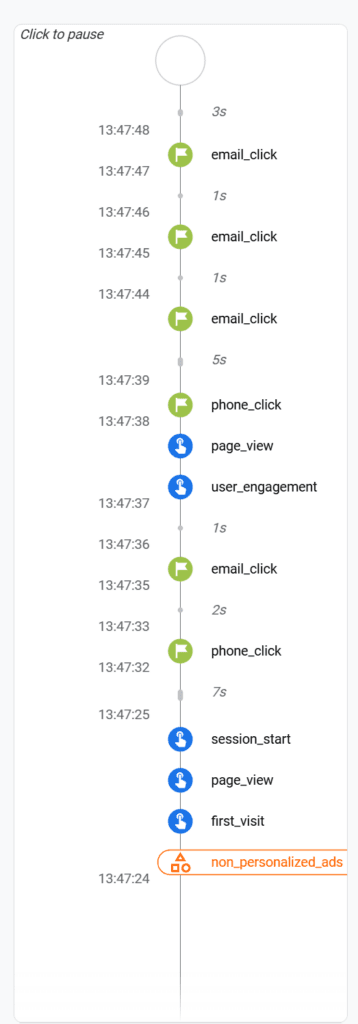
Install the Google Analytics Debugger Chrome extension and activate it. Open your Shopify store in the same browser tab, then:
- Click your phone number link
- Click your email link
- Submit your contact or enquiry form with test data
- Submit the newsletter signup form with a test email
Go to GA4 > Admin > DebugView. You should see the corresponding events appearing within a few seconds: phone_click, email_click, form_submit or lead_form_submit, and newsletter_signup.
If an event isn't appearing, open Chrome DevTools (F12), go to the Console tab, and look for any JavaScript errors. The most common issue is the script being placed after </body> rather than before it, or a conflicting script blocking execution.
Step 5: Mark Events as Key Events in GA4
Wait 24 to 48 hours for the events to appear in GA4 > Admin > Events. Once listed, toggle Mark as Key Event on for each one you want to treat as a conversion. Key events are what GA4 calls conversions — they surface in your acquisition reports and become available for import into Google Ads.
Which ones to mark is up to you, but as a starting point: phone_click, lead_form_submit, and form_submit are all strong signals of contact intent and worth treating as conversions. newsletter_signup is useful to track but is typically a softer signal.
Step 6: Import into Google Ads (Optional)
If you're running Google Ads for your Shopify store, you can import these key events directly as conversion actions. Go to Goals > Conversions > New conversion action > Import > Google Analytics 4 properties. Select the events you've marked as key events and import them.
This allows your campaigns to optimise towards real contact signals rather than just sessions or page views — which makes a meaningful difference to Smart Bidding performance over time. If you're running Google Ads for your Shopify store and you're not tracking phone clicks as conversions, you're almost certainly leaving money on the table.
A Note on Third-Party App Forms
The approach above covers:
- Native Shopify contact forms (
form_type: contact) - Newsletter signup forms (
form_type: customerwithcontact[tags]: newsletter) - Shopify Lead Capture app forms (
data-testid="btn-form-submit")
If your store uses other third-party form apps (Hulk Forms, Grapevine, etc.), you'll need to inspect the form markup in your browser's DevTools to identify the right selector or form type value, then add a similar handler. The principle is the same — either listen for the submit event and read a form identifier, or listen for a click on a specific submit button.
If your Shopify store is part of a wider digital marketing setup and you want tracking that covers everything — ads, SEO, forms, calls — have a look at our SEO and PPC packages to see how we approach it.
One Important Thing to Remember
This script lives in theme.liquid. If you ever switch themes, or if a developer replaces the file during an update, the script will be gone. Make a point of checking it's still present after any theme changes. It takes ten seconds to verify in the code editor.
Conclusion
GA4 doesn't track phone clicks, email clicks, or form submissions on Shopify automatically — and GTM can't reliably fill that gap either. The approach in this guide puts the tracking directly in the theme, where it runs cleanly on every page without sandbox restrictions or third-party dependencies.
The full script handles all the main cases: phone clicks, email clicks, native contact forms, newsletter signups, and Shopify Lead Capture app forms. It's lightweight, it's safe, and once it's in place you'll have the data you need to understand how people are actually getting in touch from your store.
If you want help setting this up, or you're not sure whether your current GA4 and Google Ads tracking is working correctly, get in touch and I'll take a look.
