
If you've ever run your website through Google PageSpeed Insights or Lighthouse and seen the warning "Avoid an excessive DOM size", you've probably wondered what on earth a DOM is and why the size of it matters to Google.
This article is part of my small business guide to SEO and my small business website guide.
It's one of those technical SEO terms that sounds complex but is actually straightforward once you break it down. More importantly, it's a real and often overlooked reason why websites underperform in search — and it's particularly common on sites built with popular page builders like Divi or Elementor.
In this guide, I'll explain what DOM size is, why it matters for your site's speed and SEO, what causes it to bloat out of control, and how to check and fix yours. I've also built a free DOM size calculator below so you can test any page in seconds.

What is the DOM?
DOM stands for Document Object Model. Every time a browser loads a webpage, it reads the HTML and builds a tree-like structure out of it — that structure is the DOM. Every element on your page becomes a "node" in that tree: your header, your paragraphs, your images, your buttons, your navigation links, your footer. Every single one.
The browser uses the DOM to understand what's on the page and how to display it. JavaScript uses it to make things interactive. CSS uses it to apply styling.
Think of it like a blueprint. Before your browser can paint anything on screen, it has to build the blueprint. The more complex the blueprint, the longer everything takes.
What is DOM size?
DOM size refers to the total number of nodes in that tree — in plain terms, the number of HTML elements on your page.
Google Lighthouse flags an "Avoid an excessive DOM size" warning when your page hits any of these three thresholds:
- Total DOM nodes exceed 1,500. This is the most common trigger and the one to watch.
- Nesting depth exceeds 32 levels. That is, HTML elements nested more than 32 layers deep inside each other.
- A single parent element has more than 60 child elements. Often caused by things like mega menus or large image galleries.
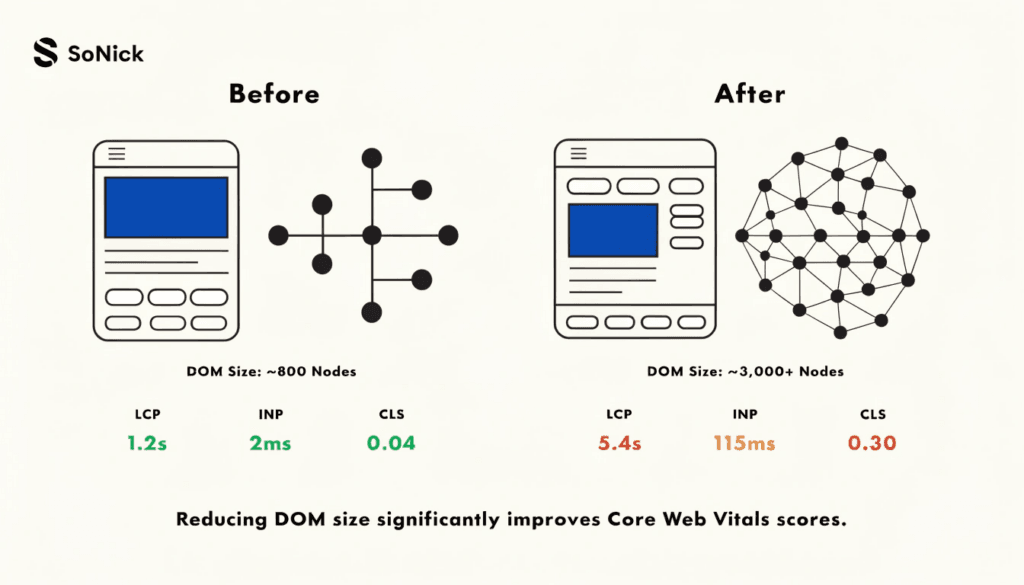
A healthy DOM — one that won't cause performance problems — sits below 800 nodes. Once you're above 1,500, you're in warning territory. Beyond 3,000 and you're likely dealing with meaningful performance issues across all devices.
Why does a large DOM slow your site down?
A bloated DOM creates problems at multiple points in the journey from server to screen.
Download speed. More elements means more HTML to transfer. The bigger the HTML document, the longer it takes to download, particularly on mobile connections.
Rendering speed. Before the browser can display your page, it has to parse the entire DOM tree. A 5,000-node DOM takes significantly longer to process than a 700-node DOM. This slows Largest Contentful Paint (LCP) — one of Google's three Core Web Vitals.
Interactivity. Every time a user clicks, taps, or types something, the browser has to recalculate styles and layout for affected elements. With a large DOM, that recalculation involves more nodes, which slows the response. This directly impacts Interaction to Next Paint (INP) — another Core Web Vital, and the one most commonly failed by websites with heavy page builders. When style recalculation affects more than 300 elements or takes longer than 40ms, it becomes a measurable drag on INP.
Memory usage. Especially on mobile devices, a large DOM chews through memory. On lower-spec phones — which make up a significant share of UK browsing traffic — this can cause visible lag, janky scrolling, and sluggish interactions.
JavaScript performance. If your site uses JavaScript to interact with the DOM (which almost all modern sites do), every query, animation, or update becomes slower as the DOM grows. More nodes means more work for every script.
The cumulative effect of all of this is slower Core Web Vitals scores, a poorer user experience, and — because Google uses page experience as a ranking factor — reduced organic visibility.
What causes an excessive DOM size?
This is where it gets practical. Excessive DOM size isn't usually down to bad coding on your part — it's almost always caused by the tools you're using to build and run your website.
Page builders
This is by far the most common cause, and it's particularly relevant for WordPress sites. Page builders like Divi, Elementor, and WPBakery are designed to give you visual flexibility — but that flexibility comes at a cost. They generate multiple wrapper <div> elements for every single module or widget on your page.
A simple section of text, a button, and an image might be just 3 HTML elements if hand-coded. Inside a page builder, that same content could easily produce 30 or 40 nodes once all the wrapper containers, column structures, and module containers are counted.
This phenomenon is so widespread it has a name: "divitis" — and it's a recognised issue across all visual page builders. Research from the 2024 Web Almanac found that <div> elements alone account for over 28% of all page elements across the web, with page builder output being a primary driver.
If you're using Divi 5, you have more control than older versions offered, and the output is cleaner than it used to be — but complex pages with many modules, sections, and nested column structures will still accumulate node counts quickly. Keeping your page structure as flat as possible (avoiding unnecessary nested sections within sections) helps significantly.
WordPress plugins
Every plugin you install has the potential to inject additional HTML, CSS, and JavaScript into your pages. Social sharing buttons, live chat widgets, booking forms, review badges, cookie banners, popups, and sticky headers can each add dozens of nodes per page. If those plugins are loading on every page regardless of whether they're needed, you're accumulating DOM bloat across your entire site.
Mega menus
Complex navigation menus — especially those with multiple columns, icons, images, and nested links — can generate enormous amounts of HTML. A mega menu with 40 or 50 links wrapped in multiple container elements is a common source of the "more than 60 children per parent" Lighthouse warning.
Large image galleries and product grids
Some gallery plugins and WooCommerce product pages wrap each image in multiple <div> containers for styling, lightboxes, or captions. It's worth noting that the image file size itself doesn't affect your DOM count — an <img> tag is a single node regardless of how large the image is. It's the wrapper elements around images that add up.
Copy-pasted content from Word or Google Docs
When you paste content directly into a WordPress editor without clearing formatting, you often bring in hidden <span> and <div> tags that aren't visible but add to your DOM count. Over time, on content-heavy pages, this can accumulate.
Check your DOM size — free calculator
Use the tool below to check any page on your site. You can either enter a URL (it will query Google PageSpeed Insights) or use the manual method: open the page in Chrome, press F12 to open DevTools, go to the Console tab, type document.querySelectorAll('*').length and press Enter. Paste that number in. <!-- wp:html -->
DOM size calculator
Enter any public URL — we'll run it through Google PageSpeed Insights and return the DOM node count.
Works on any publicly accessible page. Takes 10–20 seconds while Google runs its analysis.
Open Chrome DevTools (F12) → Console → type document.querySelectorAll('*').length → Enter.
How to reduce your DOM size
If your DOM is in warning or excessive territory, here's where to start.
1. Audit your page builder output
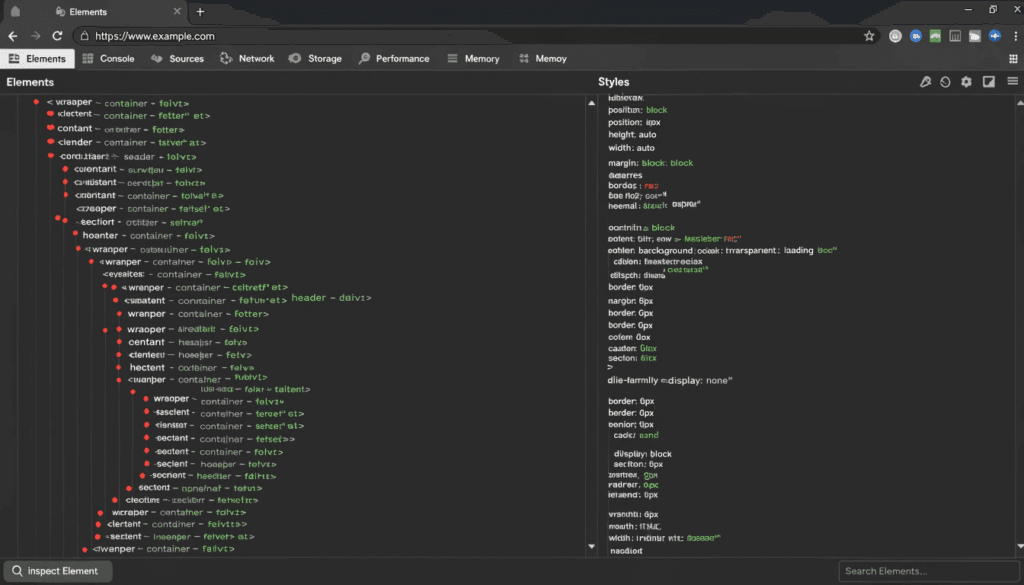
Open a problem page in Chrome DevTools (F12), go to the Elements tab, and look at the HTML structure. You're looking for excessive nesting — sections inside sections inside sections, columns with only one item, wrapper divs that serve no obvious purpose. Where you can simplify the structure without affecting the design, do so.
In Divi specifically, avoid nesting full sections inside other sections unnecessarily. Use single-column rows for simple content rather than adding a row with multiple columns where only one is used.
2. Disable page builder on simple pages
If some of your pages — your Privacy Policy, your Terms, a simple thank-you page — don't actually need a page builder, disable it on those pages and use the standard WordPress block editor instead. Gutenberg produces significantly cleaner HTML than any visual builder.
3. Audit your plugins
Go through your installed plugins and ask honestly: is this actually being used? Is it loading on every page, or only where it's needed? Deactivate and delete anything that's sitting unused. For plugins that are only relevant on certain pages, check whether the plugin has a setting to disable loading on specific post types.
4. Review your navigation
If you have a complex mega menu, consider whether that level of complexity is actually needed. Simpler navigation with fewer items not only reduces your DOM but typically converts better too.
5. Use lazy loading carefully
Some developers try to reduce the DOM impact of long pages by lazy-loading content as the user scrolls. This can help with perceived performance, but it doesn't reduce the total DOM — it just delays when nodes are created. It's a valid technique but not a substitute for simplifying the underlying structure.
6. Consider your theme
Some themes are significantly leaner than others. If your site is suffering badly from DOM bloat and your page builder is the culprit, it's worth considering whether a leaner setup would serve you better in the long run. This is a bigger undertaking, but if you're planning a site redesign, it's worth factoring page performance into your build decisions from the start.
Does fixing DOM size improve your PageSpeed score?
Here's a nuance worth understanding: fixing your DOM size won't directly improve the number shown in your PageSpeed Insights score. PageSpeed Insights doesn't score DOM size itself.
What it does do is make it significantly easier to achieve good scores in the metrics that do count. A leaner DOM means faster rendering, better INP, improved LCP, and less layout thrashing. The hidden benefits are real and compound across every page on your site.
Google's Core Web Vitals — LCP, INP, and CLS — are confirmed ranking factors. Sites that pass all three have a measurable advantage in organic search. And since INP is the metric most directly damaged by excessive DOM size, getting your DOM under control is one of the most impactful things you can do for interactivity scores.
If you want to understand how Core Web Vitals work and what scores you should be aiming for, the beginner's guide to Core Web Vitals covers all three metrics in detail.
How DOM size connects to your broader SEO
Site speed is one component of technical SEO — the foundation that everything else builds on. A technically sound website is one that loads quickly, renders correctly, and gives Google's crawlers easy access to your content. DOM bloat undermines all three.
If your pages are slow, visitors leave before they convert. If your Core Web Vitals scores are poor, you're at a competitive disadvantage in search against similar pages that perform better. And if your HTML is unnecessarily complex, you're making it harder — not easier — for search engines to understand and index what matters.
The good news is that DOM size is one of the more fixable technical issues. Unlike some performance problems that require significant infrastructure changes, DOM bloat is often addressed by making your page structure leaner — which is something you can start on today.
If you'd like an expert eye on your site's technical performance, run a free SEO audit — it takes under a minute and will surface the issues most likely to be holding your site back.
Summary
DOM size is the total number of HTML elements on your page. When it gets too large — particularly above 1,500 nodes — your browser has to work harder to render the page, which slows your Core Web Vitals, harms your user experience, and can negatively affect your search rankings.
The most common causes are page builders generating excessive wrapper elements, bloated plugin output, and complex navigation structures. Fixing it involves simplifying your page structure, auditing your plugins, and building leaner from the start where possible.
Use the calculator above to check where your pages stand — and if you're concerned about the results, get in touch and I'll take a look at what's going on.
