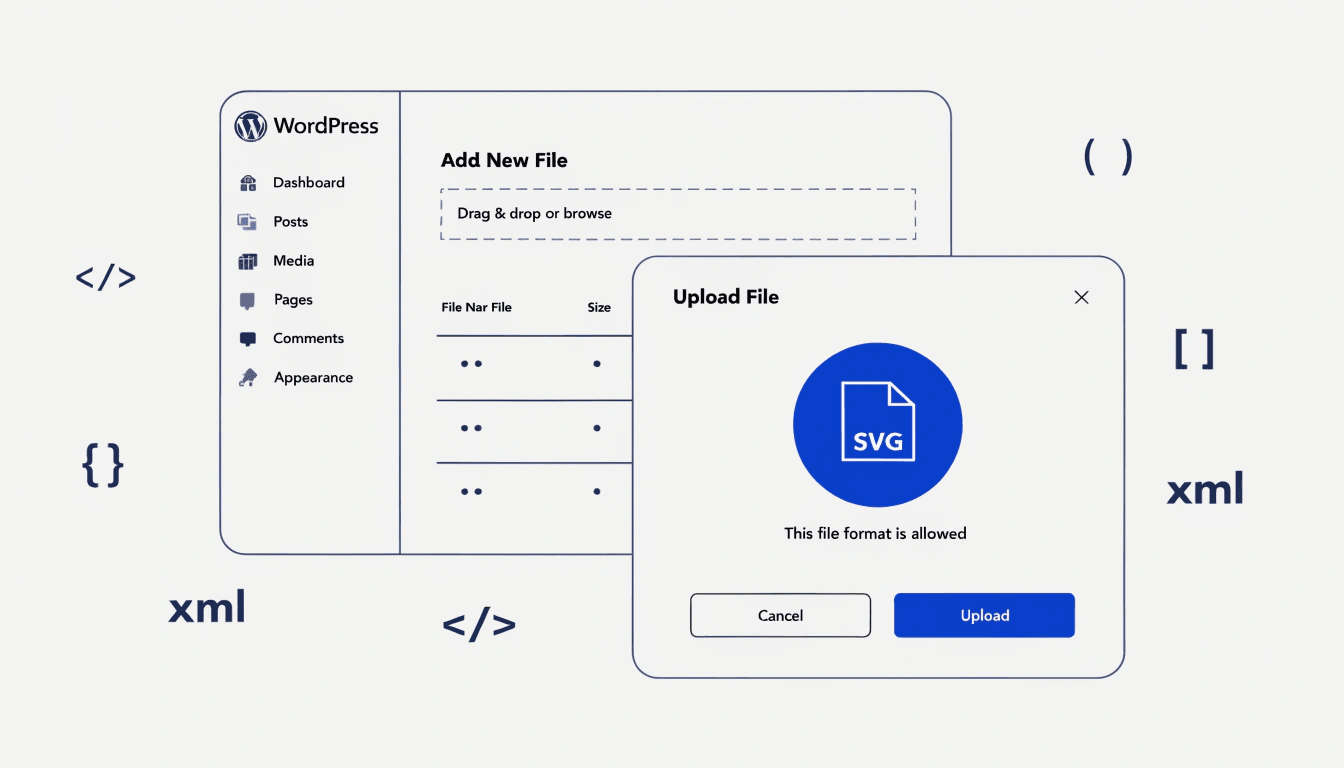
The number one Google result for this topic contains broken code. I know because I pasted it into a client site and it did nothing. The snippet has a version check hardcoded to WordPress 4.7.1, which means it only runs on a nine-year-old version of WordPress and silently fails on everything since. The article was updated in May 2026. The code was not.
Here's the working version, then I'll explain what each part does and where to put it.
The Working Code Snippet
Add this to your child theme's functions.php file, or to a site-specific plugin (more on that below):
// Allow SVG uploads
function sonick_allow_svg_upload( $mimes ) {
    $mimes['svg']  = 'image/svg+xml';
    $mimes['svgz'] = 'image/svg+xml';
    return $mimes;
}
add_filter( 'upload_mimes', 'sonick_allow_svg_upload' );

// Fix SVG mime type check (required since WP 5.1+)
function sonick_fix_svg_mime_check( $data, $file, $filename, $mimes, $real_mime = null ) {
    if ( ! $data['type'] ) {
        $ext = strtolower( pathinfo( $filename, PATHINFO_EXTENSION ) );
        if ( $ext === 'svg' || $ext === 'svgz' ) {
            $data['type'] = 'image/svg+xml';
            $data['ext']  = $ext;
        }
    }
    return $data;
}
add_filter( 'wp_check_filetype_and_ext', 'sonick_fix_svg_mime_check', 10, 5 );

// Fix SVG display in the media library
function sonick_fix_svg_media_library() {
    echo '<style>
        .attachment-266x266, .thumbnail img {
            width: 100% !important;
            height: auto !important;
        }
        td.media-icon img[src$=".svg"],
        img[src$=".svg"].attachment-post-thumbnail {
            width: 100% !important;
            height: auto !important;
        }
    </style>';
}
add_action( 'admin_head', 'sonick_fix_svg_media_library' );
That's it. Save, upload an SVG to your media library, and it will work.
Why the Common Snippet Fails
The version floating around most tutorials includes this block at the top of the wp_check_filetype_and_ext filter:
global $wp_version;
if ( $wp_version !== '4.7.1' ) {
   return $data;
}
That condition reads: "if the WordPress version is anything other than 4.7.1, return early and do nothing." Since nobody is running 4.7.1 anymore, the filter exits immediately on every site it's added to. The upload_mimes filter still adds SVG to the allowed list, but WordPress's file type verification step overrides it and blocks the upload anyway. The result is an error that looks like a server or permission issue, when actually the code is just checking for a version that doesn't exist on your site.
The fix in WordPress 5.1+ was to add a fifth parameter, $real_mime, to the wp_check_filetype_and_ext filter. The original snippet was written before that change and never updated to match.
What Each Part Does
sonick_allow_svg_upload registers SVG and SVGZ as permitted mime types. This is the list WordPress checks before even attempting an upload. Without this, the file is rejected before anything else runs.
sonick_fix_svg_mime_check handles WordPress's file verification step. Since WordPress 5.1, the core checks the actual file mime type against its extension. SVGs can cause a mismatch here because they are XML-based files. This function steps in only when WordPress has failed to detect the type itself, sets the correct mime type, and lets the upload proceed. Note the five parameters — the fifth ($real_mime) is what the current WordPress core passes and what the broken snippet was missing.
sonick_fix_svg_media_library is a cosmetic fix. Without it, SVG thumbnails in your media library show at native size and often break the grid layout. This CSS forces them to display correctly.
Where to Put the Code
Option 1: Child theme functions.php
Go to Appearance > Theme File Editor, select your child theme's functions.php, and paste the snippet. Only use a child theme — if you paste into your parent theme's functions.php, you'll lose the code every time the theme updates.
If you're using Divi, you should already have a child theme active. If not, create one before adding any custom PHP.
Option 2: A site-specific plugin (better practice)
A cleaner approach is to create a simple custom plugin. This keeps your functionality separate from your theme — useful if you ever switch themes. Create a file called sonick-svg-support.php in /wp-content/plugins/sonick-svg-support/ with this header:
<?php
/**
 * Plugin Name: SVG Support
 * Description: Enables SVG uploads in the WordPress media library.
 * Version: 1.0
 */
Then paste the three functions below the header and activate the plugin from your plugins dashboard.
A Note on Security
WordPress blocks SVGs by default for a reason. SVG files are XML-based, which means they can contain embedded JavaScript. If a malicious SVG is uploaded, that code can execute in a visitor's browser.
For single-admin sites where only you are uploading files, the snippet above is fine. The risk is low when you control every upload.
For sites with multiple users who have media upload permissions — clients, editors, contributors — I'd recommend using the Safe SVG plugin instead. It sanitises SVG files on upload, stripping out any potentially harmful code before the file is saved. It's lightweight, well-maintained, and solves the security problem properly without you having to think about it.
If you do go the no-plugin route on a multi-user site, at minimum restrict SVG upload permissions to administrator-level users only.
Summing Up
The snippet that ranks number one for this topic is broken and has been for years. The fix is straightforward: remove the hardcoded version check, add the fifth parameter to the mime check filter, and update the CSS to cover modern media library markup. Three functions, all doing a specific job, none of them doing anything they shouldn't.
If you're working on a WordPress build and need help with more than just SVG support — whether that's site speed, SEO, or the broader setup — take a look at our web design services or get in touch and let's talk through what your site needs.