
If you've ever typed a search term into the WordPress admin and wondered why a post you know exists isn't showing up, there's a good chance it's because the value you're searching for lives in a custom field rather than the post title or content. WordPress admin search doesn't look there by default. It never has.
This article is part of my small business website guide.
This is a quick fix, and you don't need a plugin to do it. A small addition to your functions.php file is all it takes.
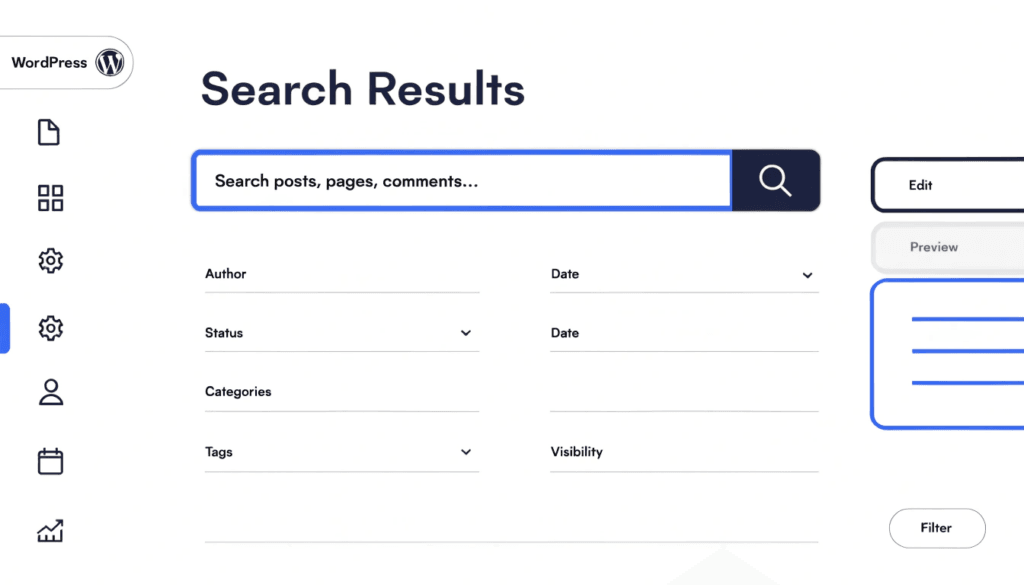
Why WordPress Admin Search Ignores Custom Fields
WordPress stores post data across two separate database tables. The wp_posts table holds the title, content, and excerpt. The wp_postmeta table holds custom field data: ACF fields, WooCommerce product attributes, SKUs, and any metadata added by plugins or your theme.
By default, the WordPress admin search query only looks at wp_posts. It has no idea wp_postmeta exists for the purposes of search. So if you're trying to find a product by its SKU, a client record by a reference number, or a post by a custom attribute, the search comes back empty even when the data is right there.
The fix involves hooking into the posts_search filter, which lets you modify the SQL query WordPress runs when you perform a search in the admin.
The Code Snippet: Extending Admin Search to Include Custom Fields
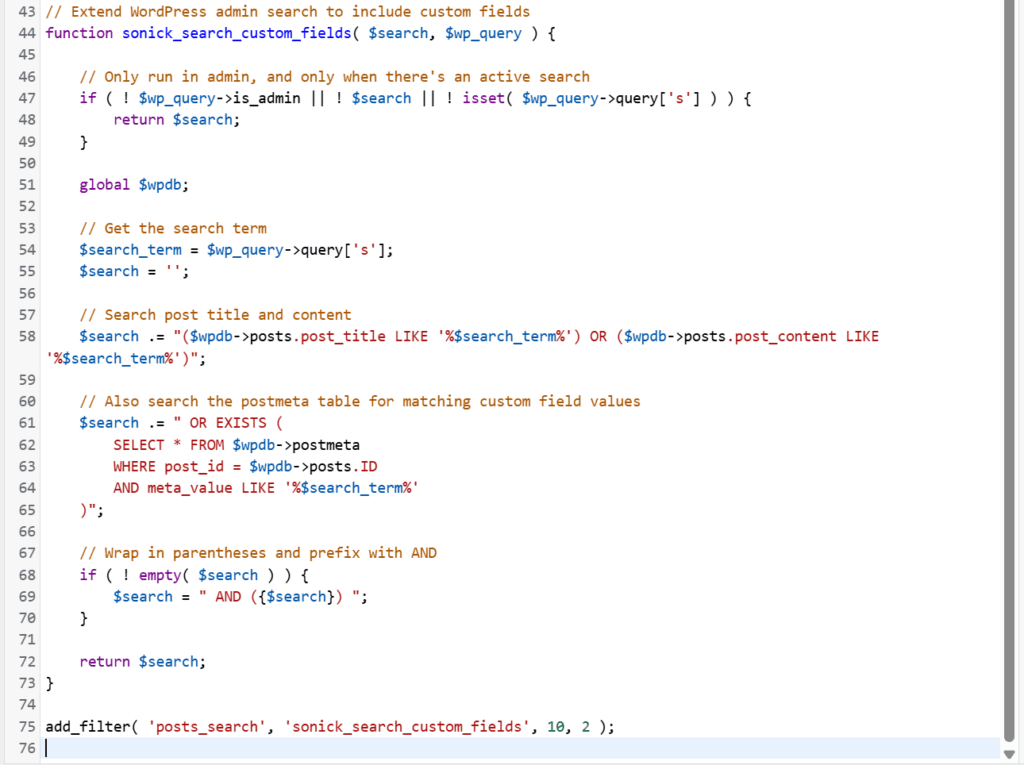
Here's the code. Add it to your functions.php and your admin search will start returning results from custom fields as well as post titles and content.
// Extend WordPress admin search to include custom fields
function sonick_search_custom_fields( $search, $wp_query ) {

    // Only run in admin, and only when there's an active search
    if ( ! $wp_query->is_admin || ! $search || ! isset( $wp_query->query['s'] ) ) {
        return $search;
    }

    global $wpdb;

    // Get the search term
    $search_term = $wp_query->query['s'];
    $search = '';

    // Search post title and content
    $search .= "($wpdb->posts.post_title LIKE '%$search_term%') OR ($wpdb->posts.post_content LIKE '%$search_term%')";

    // Also search the postmeta table for matching custom field values
    $search .= " OR EXISTS (
        SELECT * FROM $wpdb->postmeta
        WHERE post_id = $wpdb->posts.ID
        AND meta_value LIKE '%$search_term%'
    )";

    // Wrap in parentheses and prefix with AND
    if ( ! empty( $search ) ) {
        $search = " AND ({$search}) ";
    }

    return $search;
}

add_filter( 'posts_search', 'sonick_search_custom_fields', 10, 2 );
What each part does
The conditional check at the top makes sure this code only runs during admin searches. It won't affect your front-end search results or slow down any other queries.
The $wpdb->postmeta EXISTS subquery is what does the actual work. Instead of joining the two tables (which can produce duplicate results), it uses a subquery to check whether any matching custom field value exists for each post. Cleaner, and avoids the deduplication headaches that come with JOIN-based approaches.
The posts_search filter is the correct WordPress hook for modifying the search SQL. It's designed for exactly this purpose and plays nicely with everything else WordPress is doing under the hood.
How to Add This Code to Your Site
Option 1: Add it directly to functions.php
- In your WordPress admin, go to Appearance > Theme Editor
- Select functions.php from the file list on the right
- Scroll to the bottom of the file
- Paste the code snippet above
- Click Update File
One important note: if you're using a parent theme rather than a child theme, your changes will be wiped out the next time you update the theme. Always use a child theme if you're modifying functions.php in this way.
If you're using a theme like Divi, you'll find a dedicated child theme option in the theme settings. Use it.
Option 2: Use a code snippets plugin
If you'd rather avoid editing functions.php directly, a code snippets plugin is a safe alternative. Plugins like Code Snippets let you paste PHP directly into the WordPress admin, activate and deactivate it without touching any theme files, and keep it intact through theme updates.
This is often the better option for non-developers, and it's the approach I tend to recommend when I'm building WordPress sites for clients. It keeps custom code in one manageable place, separate from theme files entirely.
If you're not sure which approach suits your setup, the web design services page has more on how I approach WordPress builds.
Bonus: Extend Custom Field Search to Your Site's Front End
The snippet above is limited to the WordPress admin. If you also want your site's visitors to be able to search custom fields through the front-end search bar, you need a separate (slightly more involved) snippet.
This version works with any theme that uses the standard WordPress search function, including page builders like Divi.
/**
 * Extends WordPress front-end search to include custom fields
 * Add to functions.php
 */

add_filter( 'posts_search', 'sonick_frontend_search_custom_fields', 10, 2 );

function sonick_frontend_search_custom_fields( $search, $wp_query ) {

    // Only run on front-end search queries
    if ( ! $search || ! $wp_query->is_search || ! $wp_query->is_main_query() ) {
        return $search;
    }

    global $wpdb;

    // Get and sanitise the search term
    $search_term = esc_sql( $wp_query->query_vars['s'] );

    // Build a custom search clause covering title, content, excerpt, and custom fields
    $search = " AND (
        {$wpdb->posts}.post_title LIKE '%{$search_term}%'
        OR {$wpdb->posts}.post_content LIKE '%{$search_term}%'
        OR {$wpdb->posts}.post_excerpt LIKE '%{$search_term}%'
        OR EXISTS (
            SELECT * FROM {$wpdb->postmeta}
            WHERE post_id = {$wpdb->posts}.ID
            AND meta_value LIKE '%{$search_term}%'
        )
    )";

    return $search;
}

// Prevent duplicate posts in results
add_filter( 'posts_distinct', 'sonick_search_distinct' );

function sonick_search_distinct( $where ) {
    global $wp_query;
    if ( $wp_query->is_search ) {
        return 'DISTINCT';
    }
    return $where;
}

// Order results by relevance: title matches first, then content, then excerpt
add_filter( 'posts_orderby', 'sonick_search_orderby', 10, 2 );

function sonick_search_orderby( $orderby, $wp_query ) {
    global $wpdb;

    if ( ! $wp_query->is_search || ! $wp_query->is_main_query() ) {
        return $orderby;
    }

    $search_term = esc_sql( $wp_query->query_vars['s'] );

    $orderby = "
        CASE
            WHEN {$wpdb->posts}.post_title LIKE '%{$search_term}%' THEN 1
            WHEN {$wpdb->posts}.post_content LIKE '%{$search_term}%' THEN 2
            WHEN {$wpdb->posts}.post_excerpt LIKE '%{$search_term}%' THEN 3
            ELSE 4
        END ASC,
        {$wpdb->posts}.post_title ASC";

    return $orderby;
}
This version does three things the admin snippet doesn't:
It uses esc_sql() to sanitise the search term before it touches the database. This is important for front-end queries where you're dealing with user input directly.
It adds DISTINCT to the query to prevent duplicate posts appearing when a custom field match and a content match both fire for the same post.
It applies relevance ordering so that title matches appear at the top of results, followed by content matches, excerpt matches, and finally custom field matches. This produces more useful search results for your visitors rather than returning everything in arbitrary date order.
A Note on Performance
The most common concern people raise about this approach is database performance. It's a fair question, but in practice the overhead is minimal for most WordPress sites.
The admin snippet only fires during admin searches, which means it has no impact on your site's front-end speed whatsoever. The front-end snippet runs only on search queries, so it's not touching anything when someone is browsing normally.
Where performance could become a consideration is on very large sites with tens of thousands of posts and a heavily populated wp_postmeta table. On a typical small business site, you're unlikely to ever notice a difference. If you're running a large WooCommerce store with many thousands of products and complex ACF setups, it's worth testing the query time before deploying to production.
When a Plugin Might Make More Sense
The code snippets above handle the most common use case: basic text matching across all custom field values. For most WordPress sites, that's all you need.
There are situations where a dedicated search plugin is the better call:
- You need to search specific custom fields only, rather than all of them
- You want to weight certain fields more heavily in results (for example, SKU matches should rank above content matches)
- You're running a large WooCommerce catalogue and need fine-grained control over product search
- You want a no-code solution that non-technical team members can manage
SearchWP is the plugin I'd point people towards for complex setups. It replaces WordPress's default search engine entirely and gives you precise control over what gets searched and how results are ranked. It's a paid plugin, but for sites where search is genuinely important to the user experience, it's worth the investment.
For straightforward admin search or a simple front-end extension, the code above does the job without adding another dependency to your plugin stack.
Putting It All Together
WordPress's default admin search is limited because it was never designed to look beyond post titles and content. As soon as you start using custom fields through ACF, WooCommerce, or your theme, that limitation starts causing real friction.
The snippets in this post give you a practical, plugin-free fix for both the admin and front-end scenarios. The admin snippet is a small addition that pays for itself the first time you search for a SKU, reference number, or custom attribute and actually find what you're looking for.
If you'd like help with your WordPress setup more broadly, get in touch and let's talk through what's possible for your site.